
Workwork
Work
What it shows
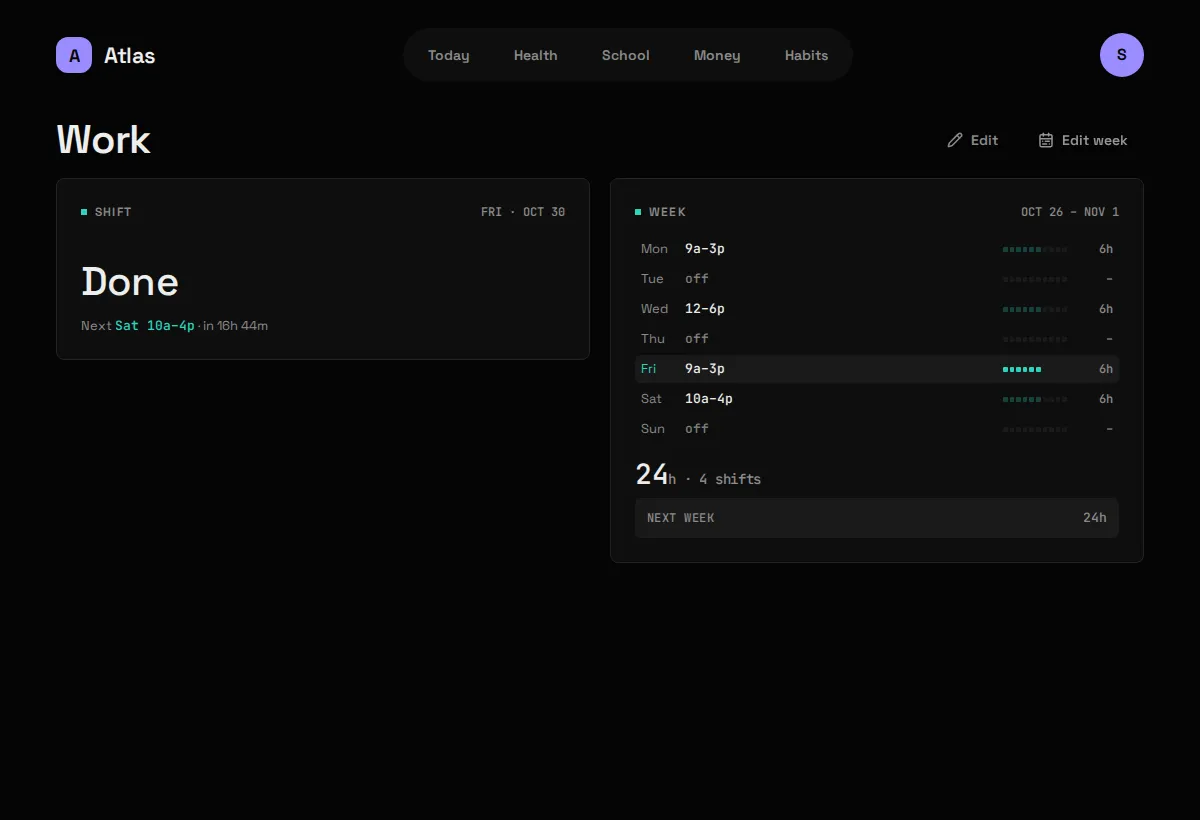
Section titled “What it shows”Today’s shift, or “Off today” and when the next one starts, and the whole week with its total hours. Work has no tab of its own: tap a Work Widget to open its Board.
| Widget | Sizes | Where |
|---|---|---|
| Shift | S M | anywhere |
| Week | M L | anywhere |
What you need
Section titled “What you need”Nothing. Work has no Source: you type in each week’s shifts. Only the optional photo reader needs more: Ollama, WITH_VISION=true (or 1, yes, on), and, if Ollama runs in another Docker stack, a network step.
- Add
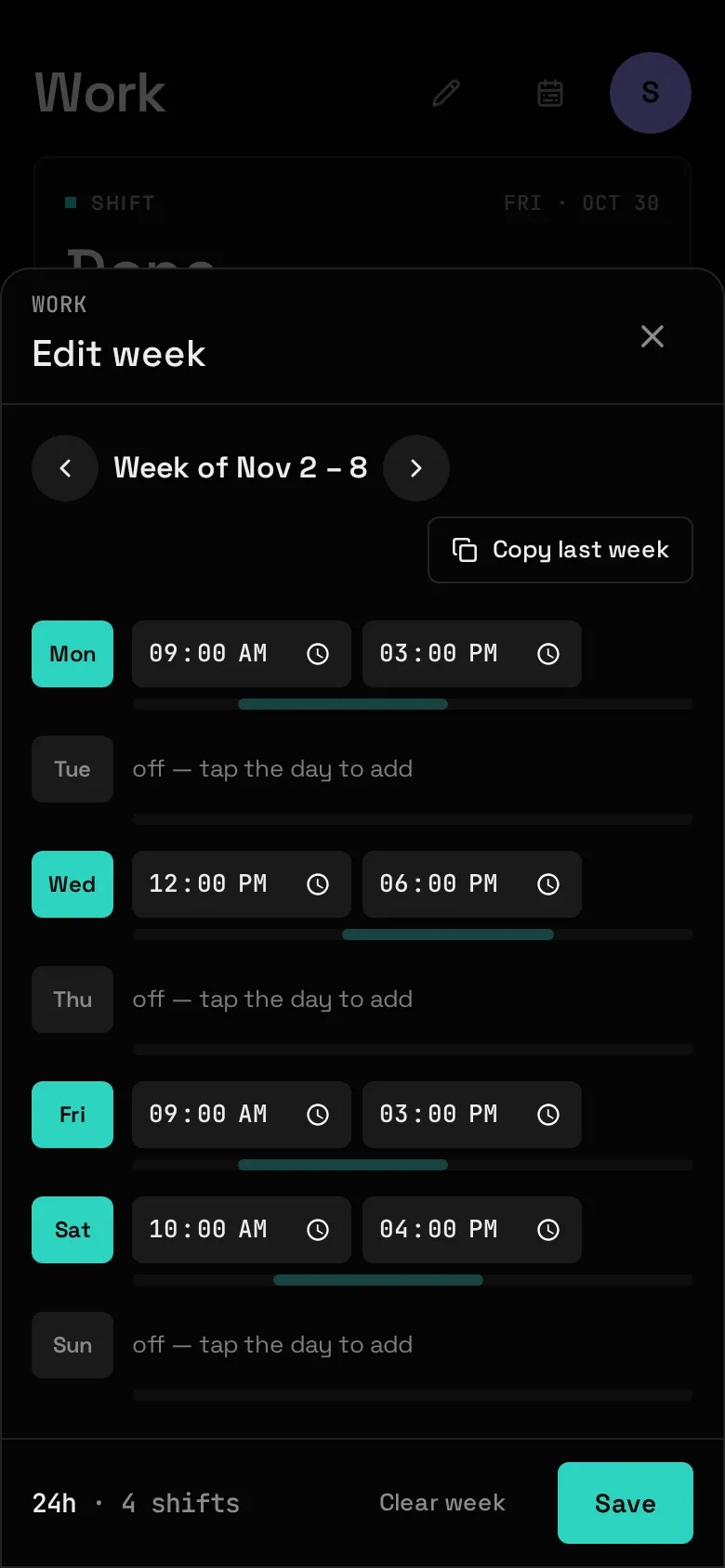
worktomodules:inconfig/atlas.yamlanddocker compose restart atlas-api. - Open Work (tap its Widget on Today) and press Edit week. If you saved Today before turning Work on, Atlas adds the Shift Widget at the end of Today the first time it sees Work is on. It is added only once: if you remove it, it stays removed, and you can put it back from Today’s Edit → Add.
- Tap a day to give it a shift, set the start and end, and Save. Copy last week fills the sheet from the week before, for a schedule that rarely changes. The arrows move between weeks.
A Widget showing a week you haven’t entered yet takes you straight to that week’s sheet.
Read a week from a photo (optional)
Section titled “Read a week from a photo (optional)”If your work hands out a printed schedule with one row per person and one column per weekday, Atlas can fill the week in from a photo of it. Press Read from photo in Edit week, take the picture, and walk away. Reading takes a couple of minutes, and the Work screen says when the week is ready to check. Nothing counts until you open it and press Save, and Discard drops it. A day Atlas couldn’t read is marked for you to set by hand.
It runs on your own machine. You need Ollama with a vision model (ollama pull gemma3:4b), and Atlas built with WITH_VISION=true (or 1, yes, on) in .env. If Ollama runs in another Docker stack, atlas-api must also join its network, or every read fails with “Couldn’t reach the vision model”. If Ollama answers but the model was never pulled, the read says the model isn’t installed instead: run ollama pull with the name from model:. See Reaching your other apps. Then add a photo: block to config/modules/work.yaml (see the example file) with your name as it’s printed and what “C” (close) means each weekday, and rebuild with docker compose up -d --build. Write each Close time as local clock time without a timezone ("21:00", not 21:00Z), and keep morning_from between 1 and 12; Atlas turns the photo reader off and logs a warning naming work.yaml if either is wrong. The photo is never stored, and the photo is re-encoded in your browser first, which removes the phone’s location data before anything is sent. If your browser can’t do that (for example HEIC in Chrome or Firefox), Atlas won’t send it and asks you to use a JPEG or a screenshot instead.
How it works: Atlas finds the grid and your row itself, and the model only copies that one row. Small models lose their place on a whole sheet, but read a single row reliably.
Config keys
Section titled “Config keys”Without a photo, none: Work needs no file in config/modules/ and no secrets. For photos, config/modules/work.yaml:
| Key | Meaning |
|---|---|
photo.ollama_url |
Where atlas-api reaches Ollama, e.g. http://ollama:11434 once it joins Ollama’s network in a compose override. |
photo.model |
A vision model Ollama has. Default gemma3:4b. |
photo.name |
Your name exactly as printed in the schedule’s first column. |
photo.close |
The time “C” stands for, per weekday or range: mon-thu: "20:30". |
photo.morning_from |
The paper has no am/pm: a start from this hour to 11 is morning. Default 7. |
photo.date_format |
md (10/26 is 26 October, the default) or dm (26/10). Each column takes its date from its own weekday header, so a Sunday-first paper works. A column whose header weekday disagrees with its date, or whose date falls outside the week, is marked for you to set by hand. |
What it stores
Section titled “What it stores”| Table | Holds |
|---|---|
work_weeks |
One row per week you’ve saved, keyed on its Monday. |
work_shifts |
One row per working day: date, start, end. |
work_drafts |
Photo reads: in progress, failed (with the reason), or a week waiting for you to check. Saving the week deletes its draft. Never the photo. |
Gotchas
Section titled “Gotchas”- “Off” and “not entered” are different. A day with no shift in a week you’ve saved is a day off. A day in a week you’ve never saved is unknown, and the Widgets say “not entered” rather than pretending you’re free. Clear week turns a week back into not entered.
- A week is saved whole, Monday to Sunday.
- One shift a day, and it can’t cross midnight. The end must be after the start on the same day; an overnight shift has to be split.